
iPhone Access Guide
Family Promise Secure Portals
Why am I seeing the wrong screen?
Apple’s Safari browser has a strict privacy feature called “Prevent Cross-Site Tracking.” Because our secure staff apps are embedded securely inside our FPOPS website, Safari mistakenly blocks your Google login cookies, causing the system to treat you as a public visitor.
Follow the two steps below to fix this issue permanently on your iPhone.
Part 1: Update Safari Settings
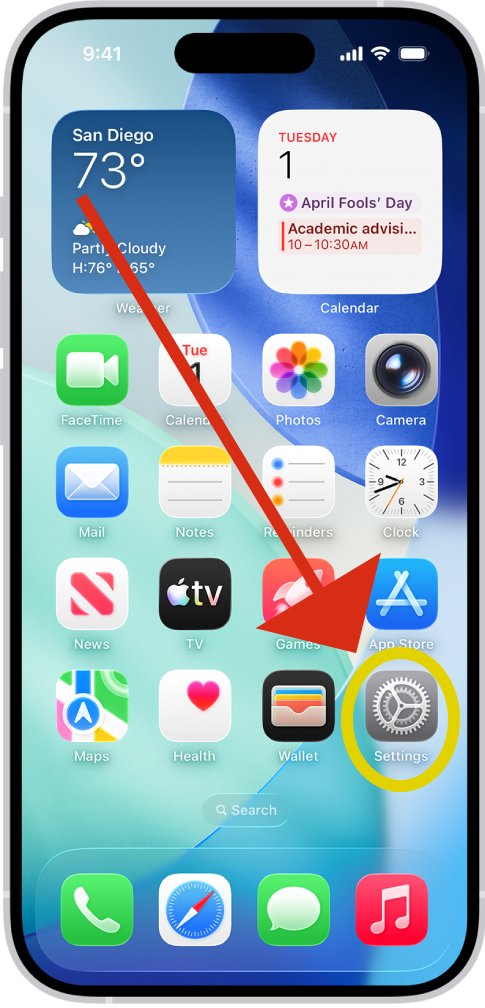
Open your iPhone Settings
Go to your home screen and open the standard Apple Settings app. You may need to scroll down to Apps.
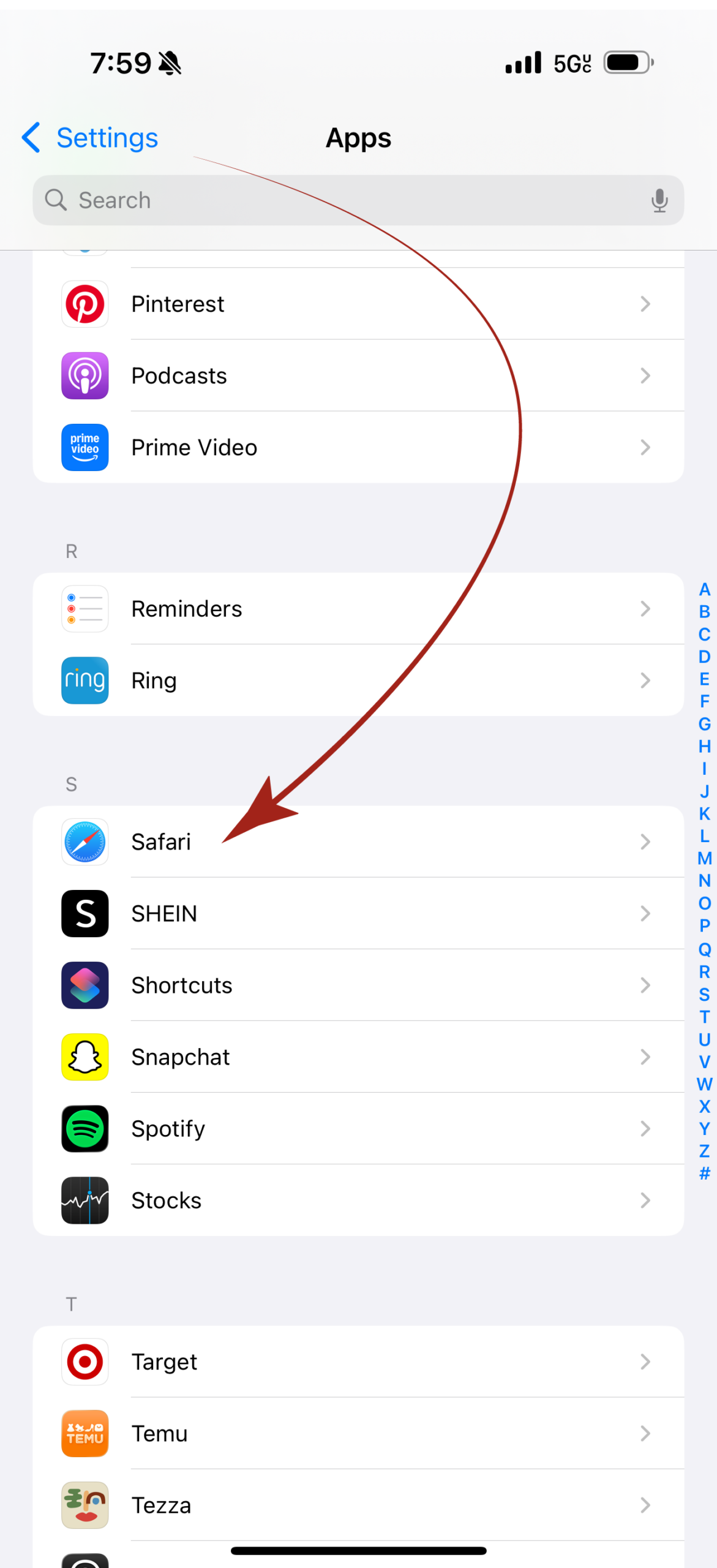
Find Safari
Scroll down the settings list and tap on Safari (or search in the search bar for Safari).
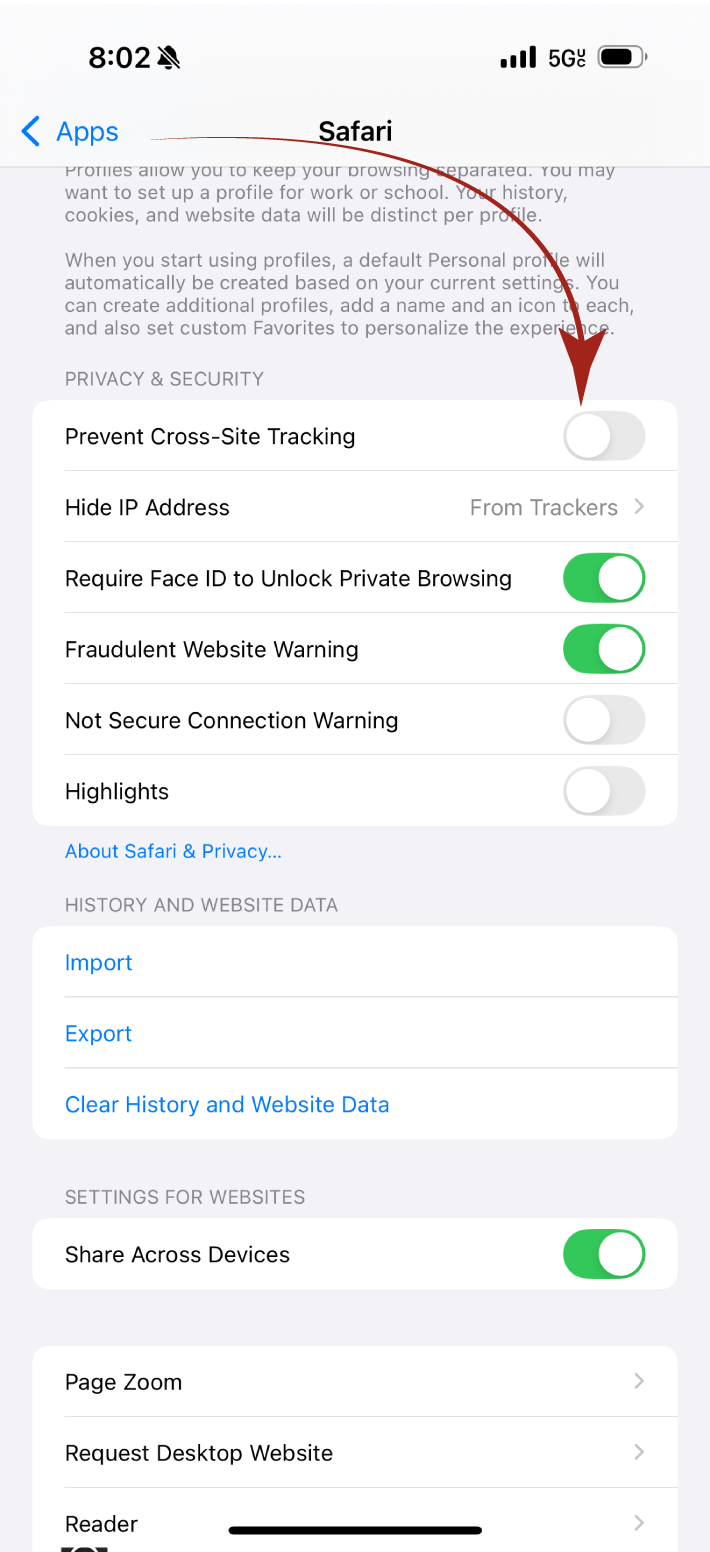
Turn off “Prevent Cross-Site Tracking”
Scroll down to the Privacy & Security section. Make sure the toggle switch next to Prevent Cross-Site Tracking is turned OFF (it should be grey, not green).
Part 2: Add to Home Screen (Recommended)
Pro Tip: Adding the portal to your Home Screen creates an “App-like” experience and gives it a dedicated secure space on your phone, preventing future login issues!
Open the Portal
Open Safari and navigate to the staff portal page on the FPOPS website.
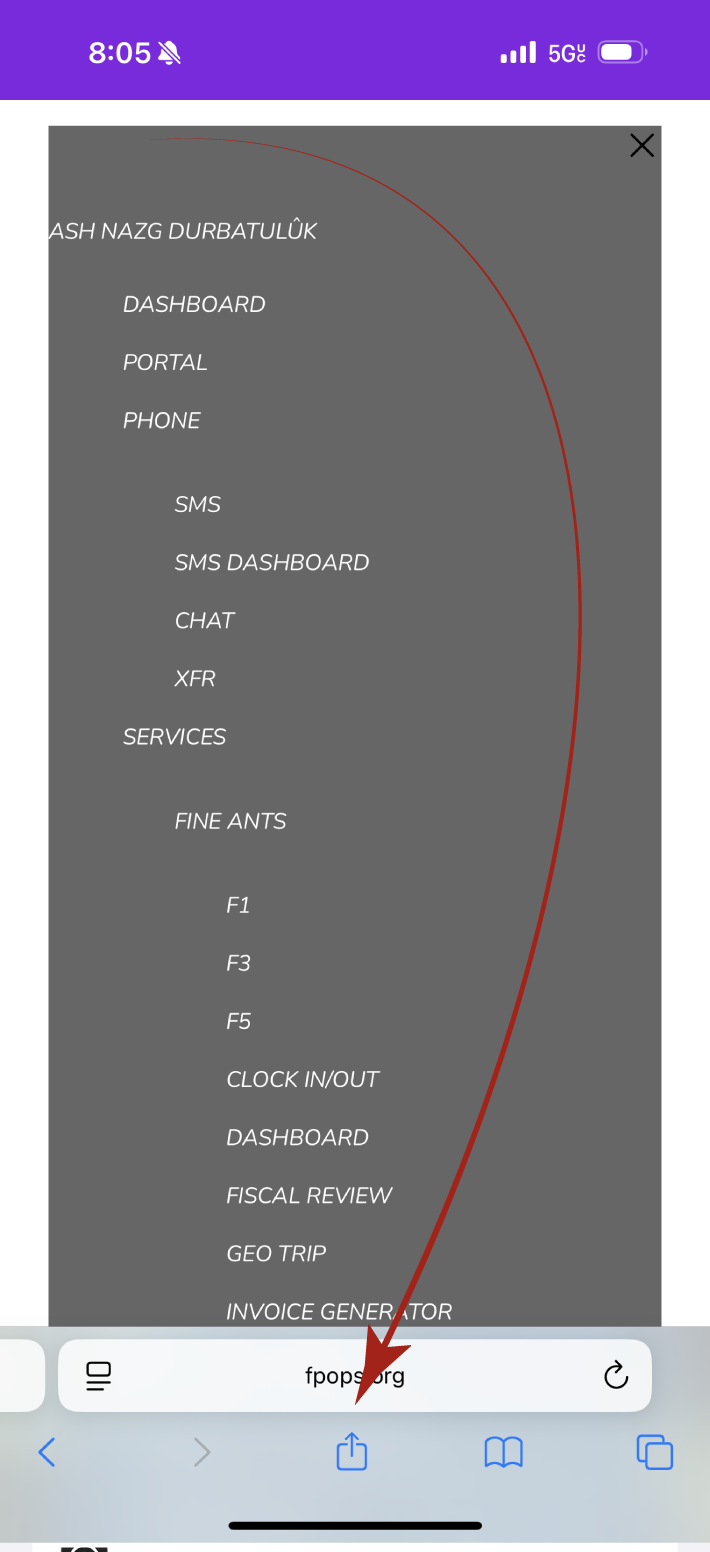
Tap the Share Button
Look at the bottom menu bar in Safari and tap the Share icon (the square with an arrow pointing up).
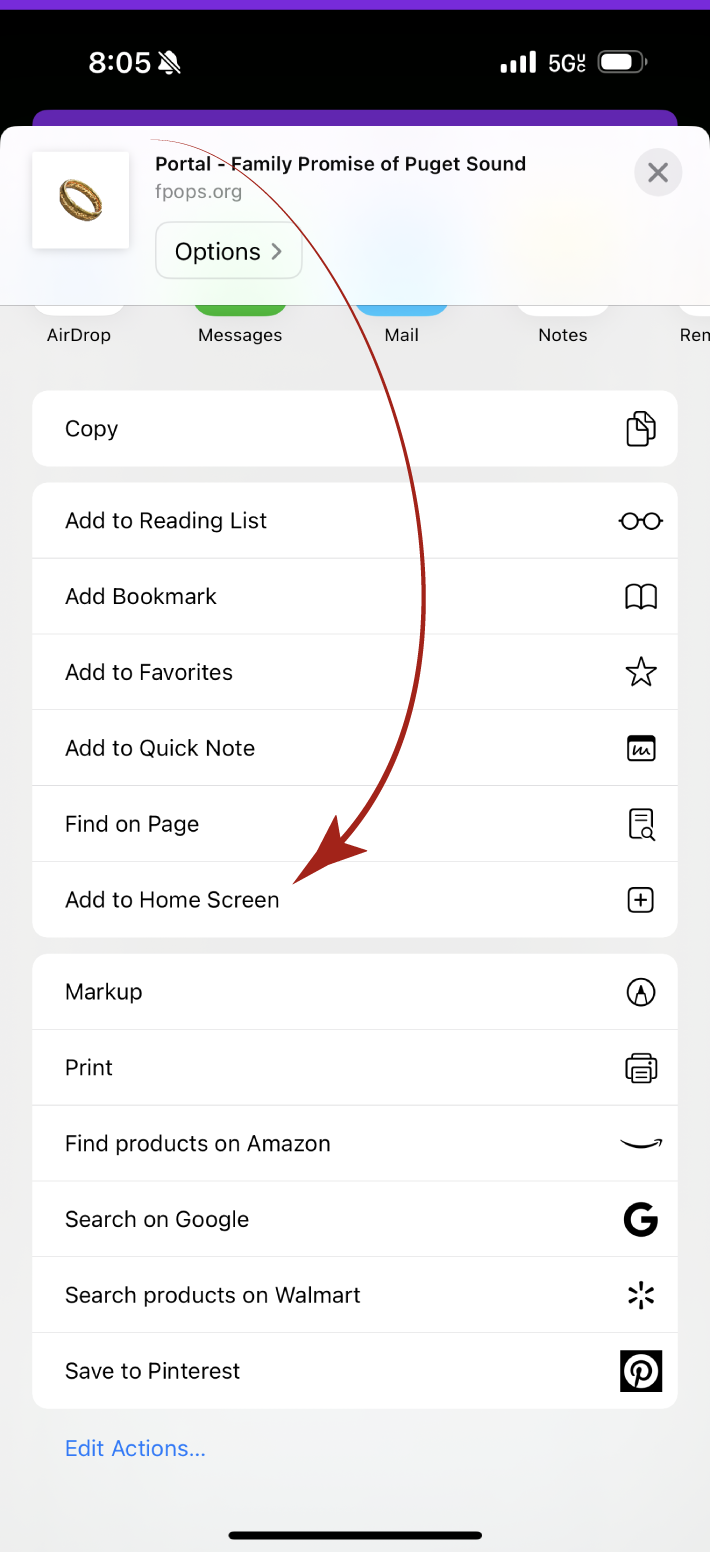
Select “Add to Home Screen”
Scroll down the share menu list (or search in the search bar for Safari) until you see Add to Home Screen and tap it.
Confirm and Launch
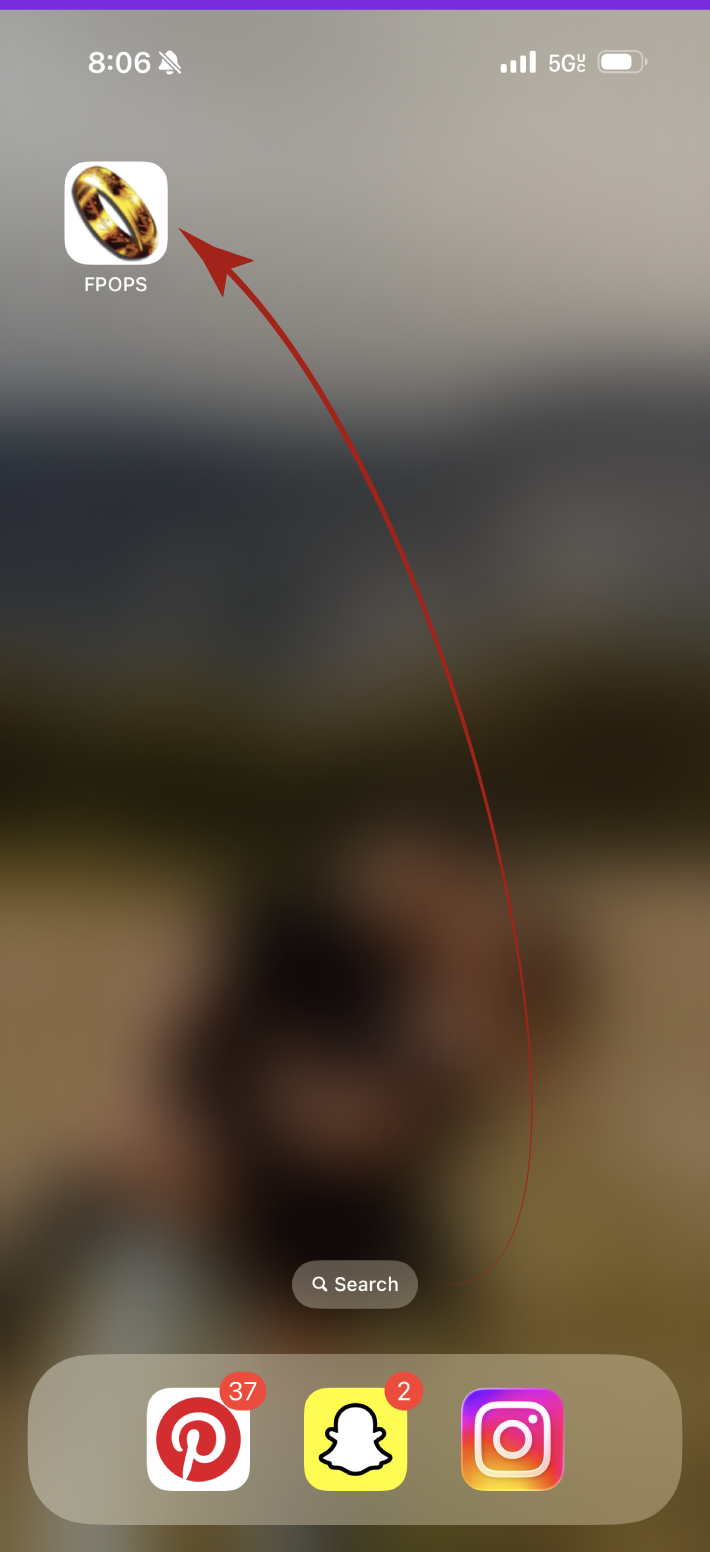
Tap Add in the top right corner. You will now have an FPOPS app icon on your home screen. Tap this icon to securely access the portal anytime!
One-Time Login Required
When you launch the new FPOPS icon from your home screen for the first time, you will need to sign in to Google.
1. When the app has opened, go to the upper left hamburger menu, open it and scroll down to LOG IN.
2. Click on the “Log In using Family Promise” button.
3. Enter your @fpops.org email address.
4. Enter your password.
5. Because this is a “Home Screen App,” it won’t mix with your personal Gmail accounts. You should stay logged in after this first time!
Still having trouble?
Please make sure you are logged into your @fpops.org Google account in Safari. If you need further assistance, contact the FPOPS IT Administrator, 253-444-4563.